WhatsApp DP Resize & Size – Full Size WhatsApp DP Maker
WhatsApp DP Maker
Fit, crop, blur / gradient backgrounds · Full-resolution square JPEG export
Upload
Drag & drop or click to upload
JPG, PNG, WEBP · max 20 MB
Looking for a crisp and professional WhatsApp DP resizer but can’t find the time to edit apps for hours? With our WhatsApp DP Maker tool, you can resize, crop, and edit your photo in the browser itself. No software download. No sign-up.
One click and instant editing of your image, and then download a WhatsApp-ready DP in seconds with our WP DP resize tool. You can use this tool to create your full DP for WhatsApp, download WhatsApp DP online maker free, or convert any regular photo to the right WhatsApp DP size without crop.
What is the Correct WhatsApp DP Size?
WhatsApp DP Size in Pixels (500×500, 192×192, 640×640)
If your photo isn’t cropped to the correct square size before uploading, WhatsApp will auto-crop it — often cutting off faces or important parts of the image.
Our WhatsApp DP Resize tool solves this instantly: upload any photo, crop it to the exact WhatsApp DP size in one click, and download a sharp, ready-to-use profile picture.
How to use Our WhatsApp DP Resizer Tool
This tool offers guidance on how to use it. Let’s take a quick look at how to make WhatsApp DP resize in a few easy steps.
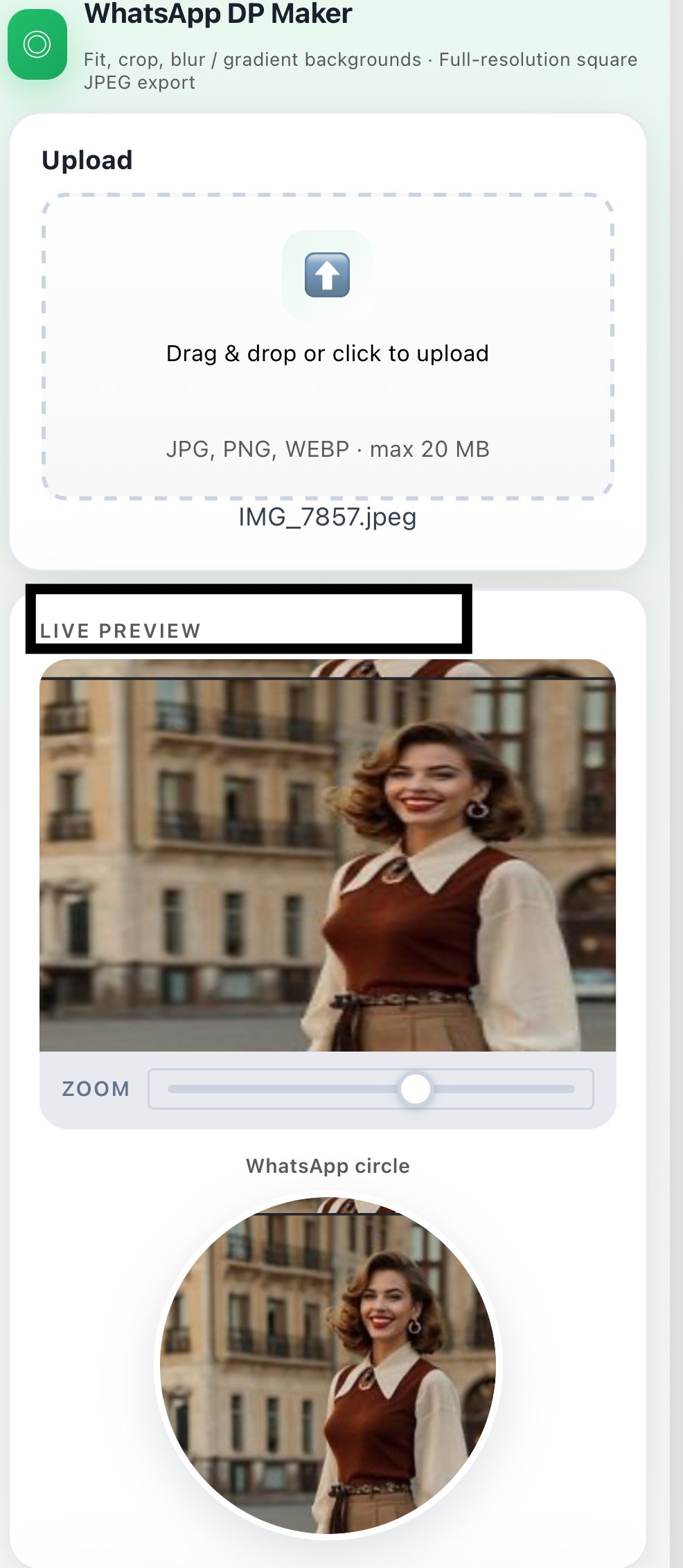
Upload Image
Choose the image (JPG, PNG, or WEBP) to upload
Crop Photo
Crop so you’re focused on your face or subject
Zoom In or Out
Use the slider to zoom in or out of the image
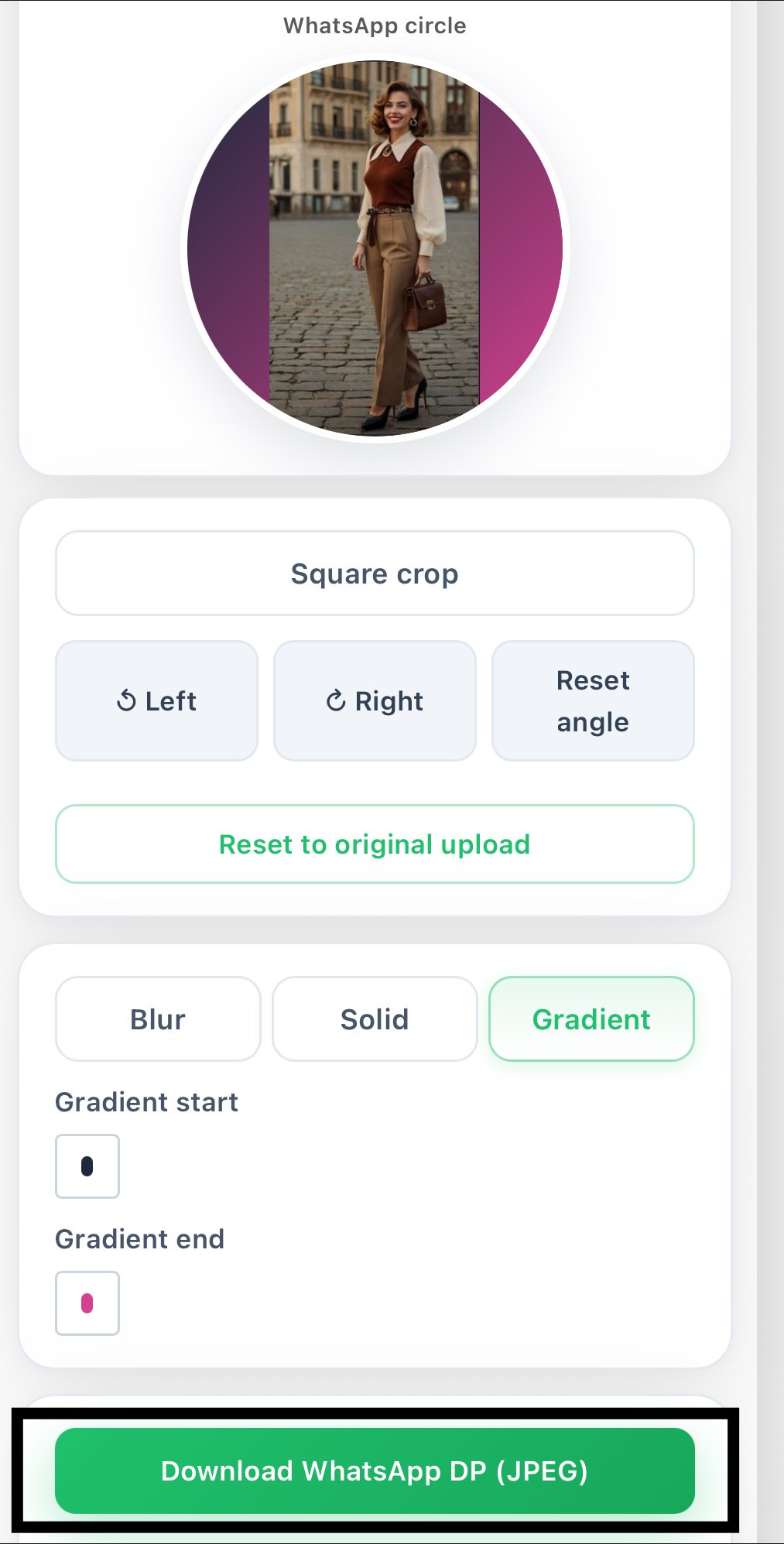
Rotate Image
If the image is tilted, rotate it
Choose Background
Select a background style (Blur, Solid, or Gradient)
Download DP
Download your WhatsApp DP to an optimized JPEG format
Steps to Use the Whatsapp DP Resizer
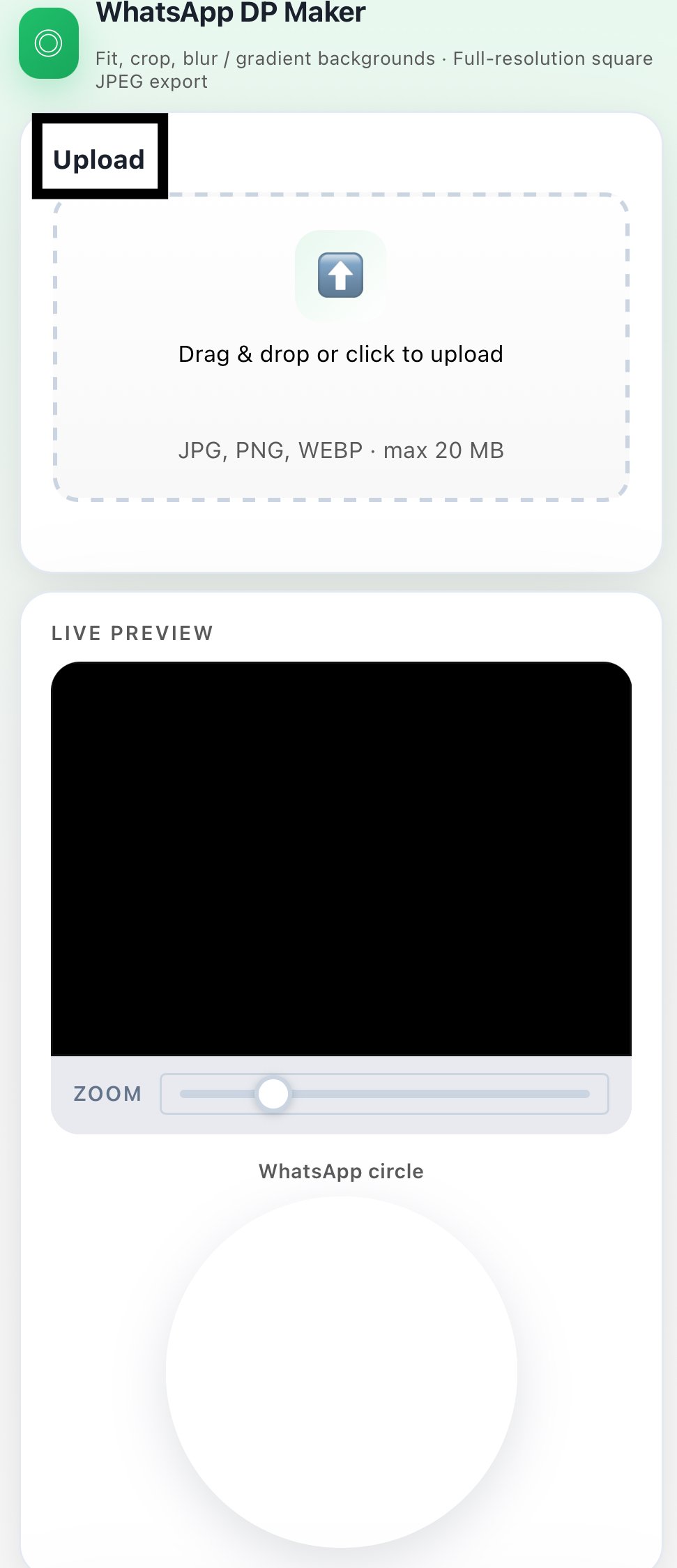
Step 1: Upload your image
You must upload your photo to the tool’s upload box. It can accommodate JPG, PNG, and WEBP formats, up to 20 MB in size. To get the best WhatsApp DP result, make sure to take a clear, high-quality photo. If the light is bad or the image is not clear, it will impact the final image, so choose the best one you can before you start.
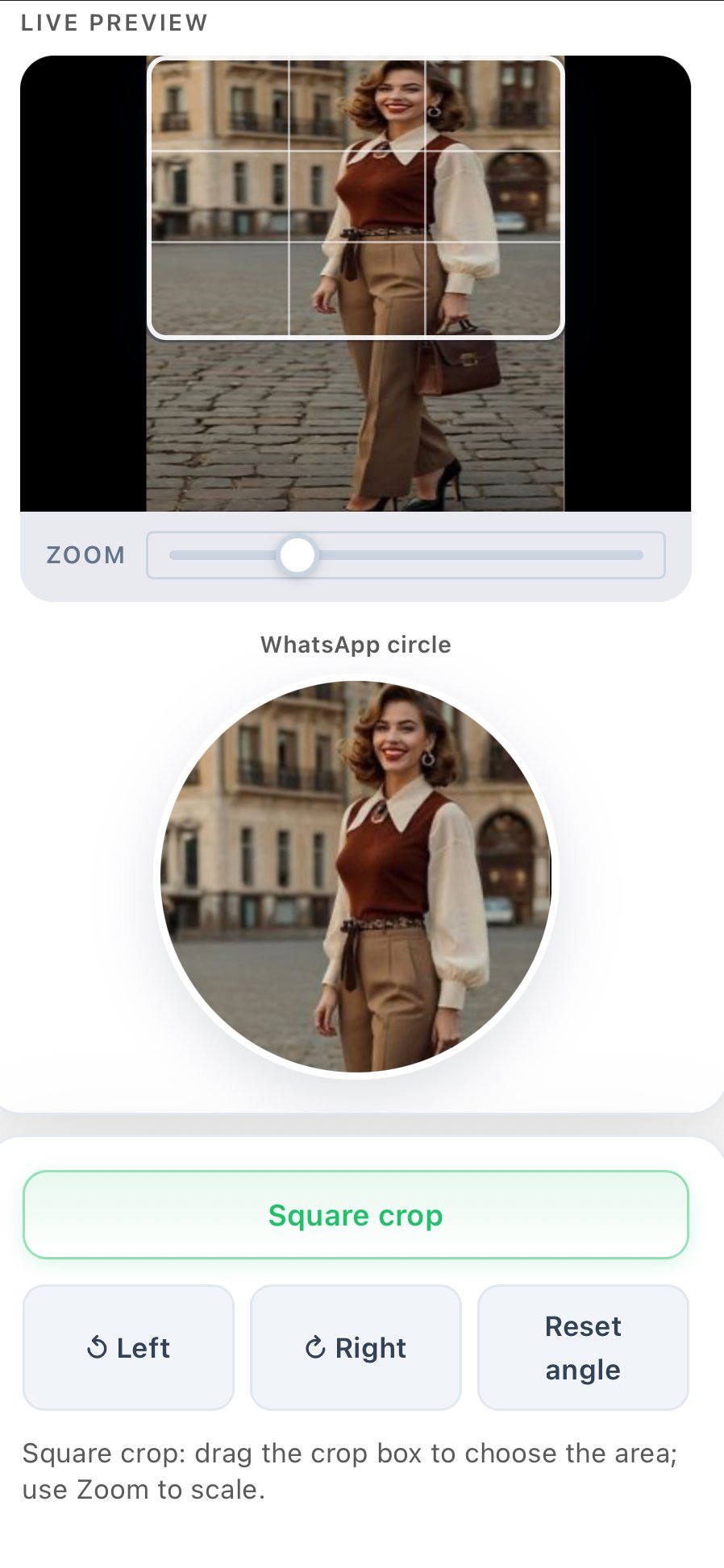
Step 2: Resize the crop area
The square crop frame will have the exact dimensions of a WhatsApp DP image crop, so you can place your subject exactly in the middle. This is particularly helpful when you wish to capture a full DP of WhatsApp without any weird cutting corners or cut-out faces. Use the “crop” tool to move the frame of the image around so that it looks just right for your profile picture.
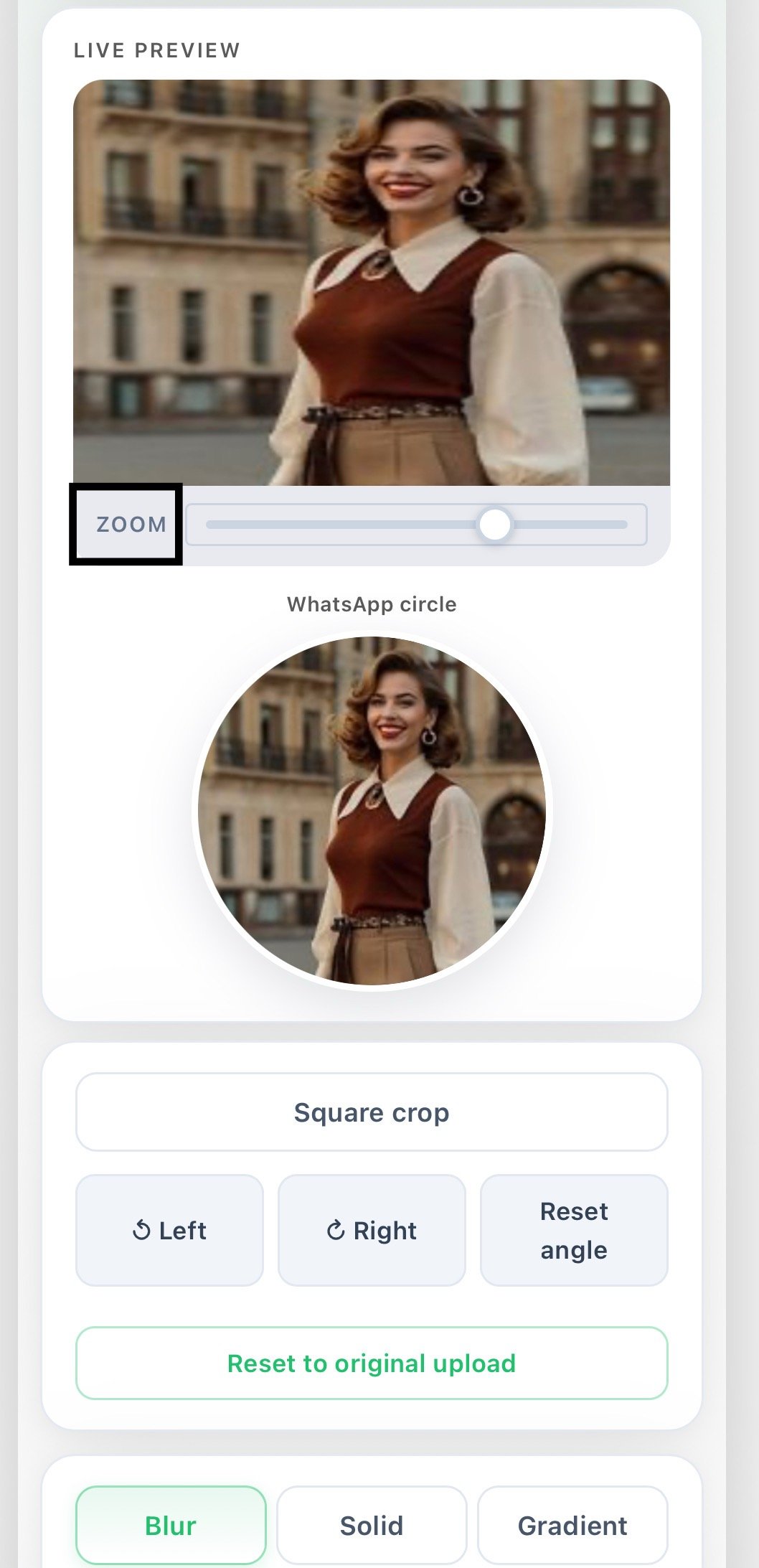
Step 3: Zoom in or out
Adjust the zoom slider to zoom in or out of your image, so it fits into the WhatsApp DP frame. You can zoom in to get a close-up profile shot, or zoom out to reveal the background. It also comes in very handy if you want to change the DP ratio of WhatsApp without losing out on crucial parts of the image.
Step 4: Rotate your image
The rotate buttons can correct the rotation of your photo if it was captured at an angle or saved sideways. Straighten the image using the left/right rotation controls. A correctly aligned photo always looks more professional since almost all photo dimensions of WhatsApp DPs are square, and every pixel counts.
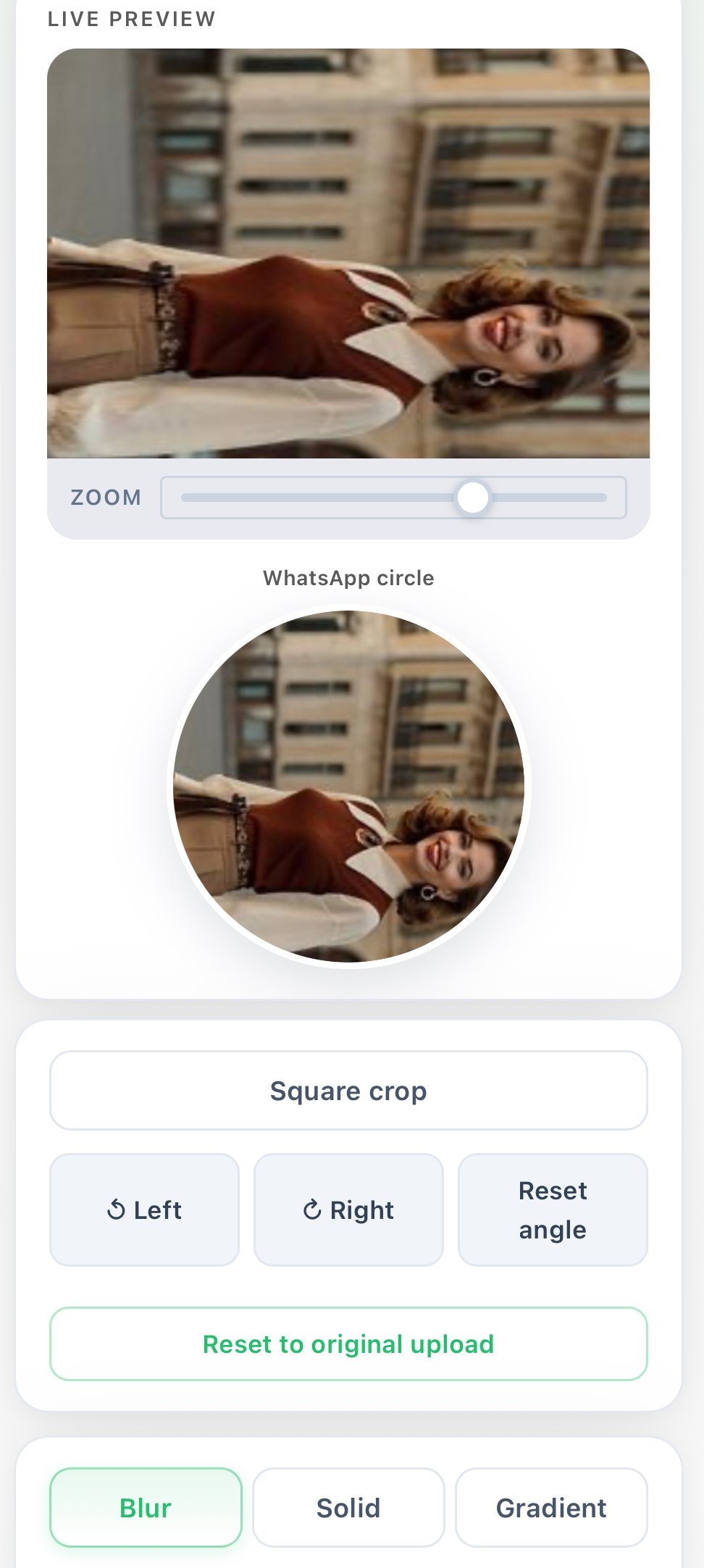
Step 5: Reset image settings
Changing so many things and wishing to begin again? The reset options return the crop position to the original or remove the rotation without reloading the photo. It will save you time if you’re playing around with different WhatsApp DP sizes or testing multiple crop positions until you find the perfect look
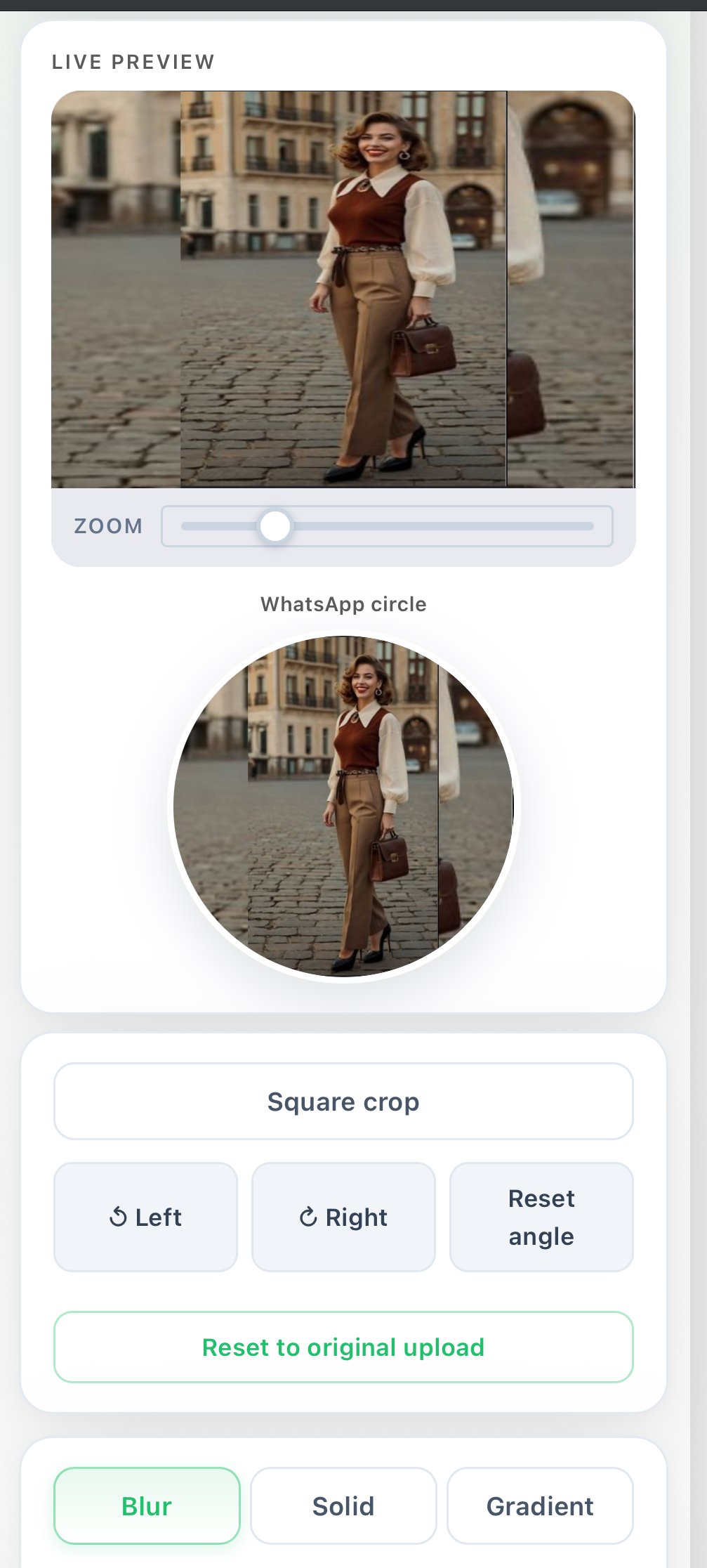
.
Step 6: Customize the background
This is where the tool goes above and beyond a simple image resizer for WhatsApp. Add a background style to make your profile picture look great: blur, solid color, or gradient. Suitable for portrait shots where you want to adjust and fit the WhatsApp DP without a distracting background. A clean background enhances the attractiveness and gives a polished look to your DP.
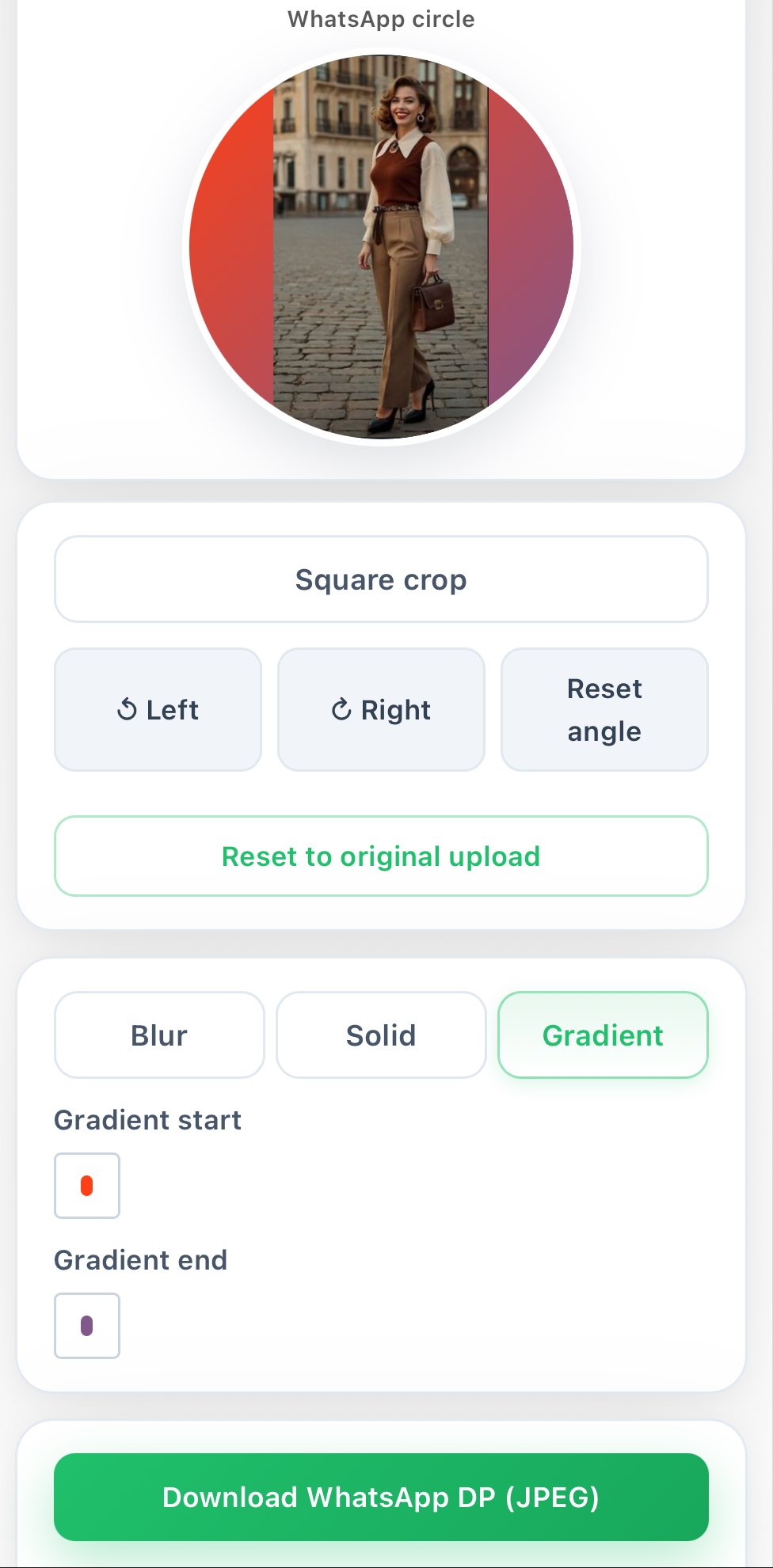
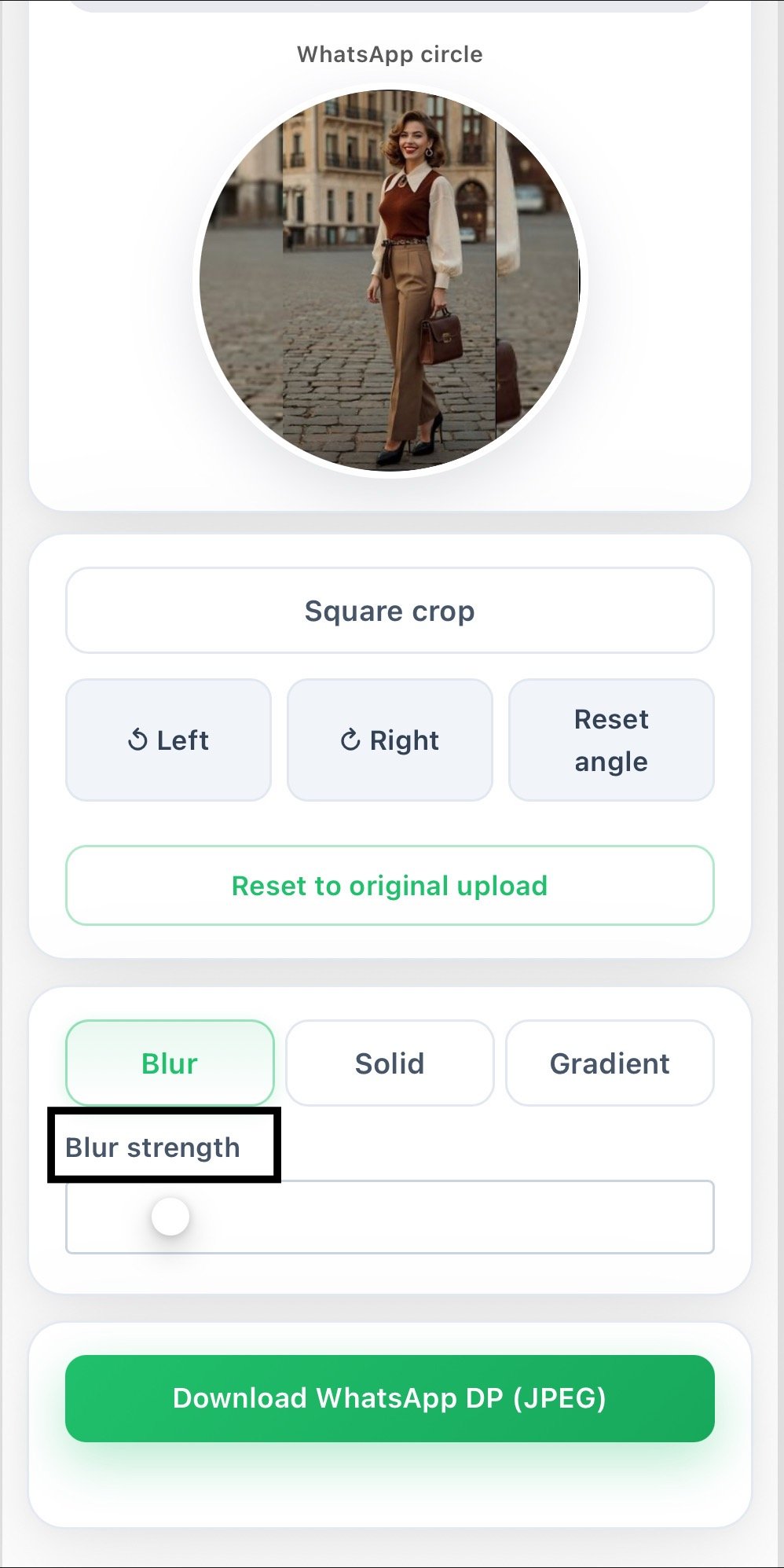
Step 7: Adjust blur strength
Click on the blurred background to display a slider that you can use to control the intensity of the blur. A lighter blur gives an informal look to the background, whereas a stronger blur will achieve a more studio-quality look. It’s ideal for anyone seeking an HD DP for WhatsApp without a DSLR camera or green screen setup.
Step 8: Live preview feature
The live preview feature updates automatically each time you make an edit, ensuring that you can see what your WhatsApp DP is going to look like even before downloading it. No guesswork or anything unexpected. If it doesn’t look right, make it right away. What you see is what you get. The preview will display the final size and aspect of the WhatsApp profile picture.
Step 9: Download WhatsApp DP
When you are satisfied with the image, click the download link to download it. Result: WhatsApp DP optimized JPEG file. The profile picture dimensions are just right for WhatsApp and won’t get cut off by the application. This takes only a click, and you are done with your new DP and ready to upload it
.
Supported Image Formats
How our WhatsApp DP resizer compares to other tools
What is the purpose of this WhatsApp DP Resizer tool?
Most online tools have a basic WhatsApp DP resize or crop feature. This tool takes it one step further by offering cropping, zooming, rotation, and background customization in one place. No need to use different applications to get the right WhatsApp DP size in pixels, adjust the resolution, or apply a background effect; this tool works as a complete WhatsApp DP size converter online.
You can also improve your WhatsApp Status videos with our WhatsApp Video Enhancer for better quality, smooth playback, and optimized sharing.
It supports all mobile and desktop browsers and allows you to design a wonderful profile photo for WhatsApp anytime. This is a tool created for those who’ve been looking for a solid, fast, free, and easy-to-use DP maker for WhatsApp.